
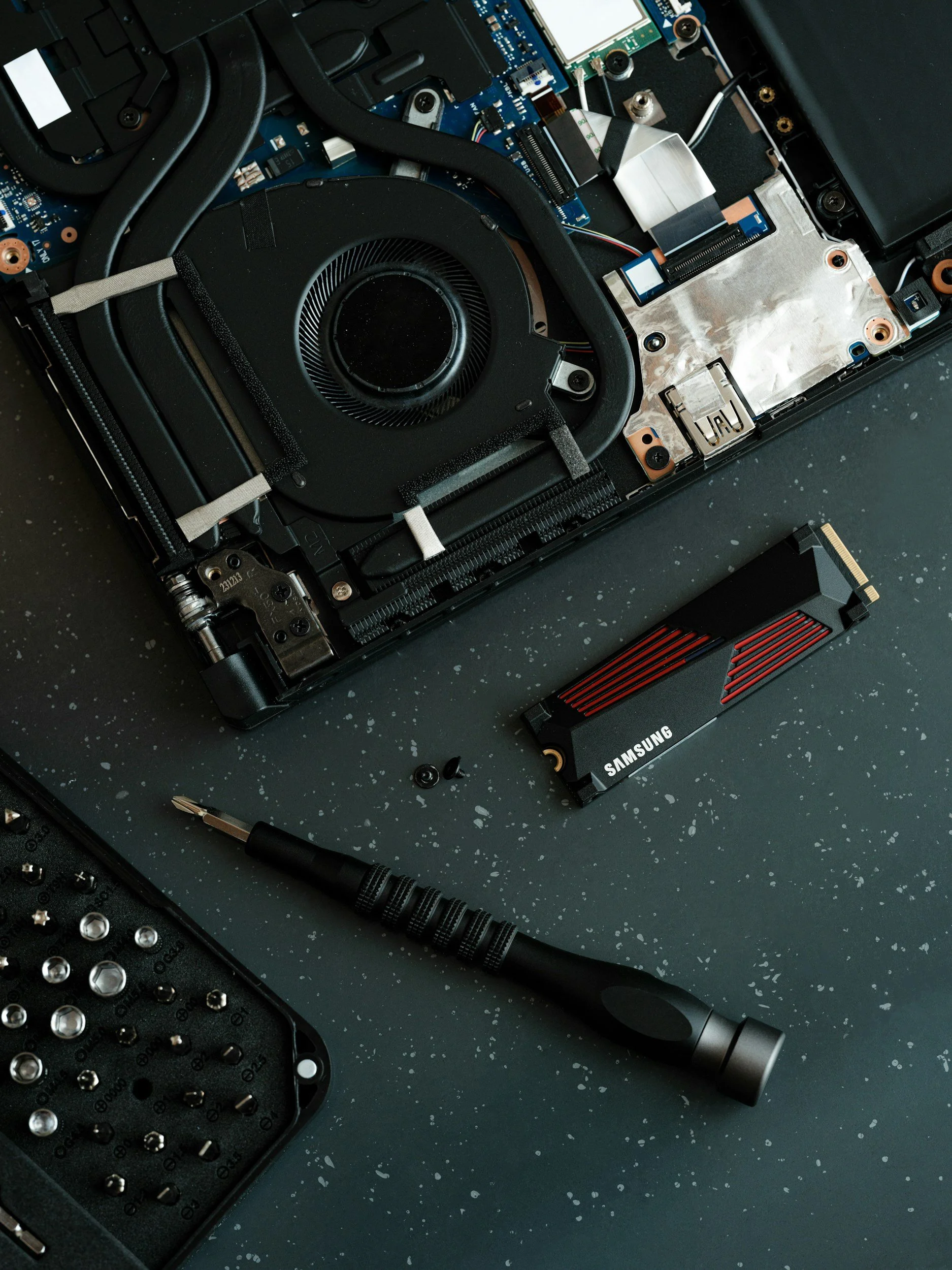
A slow computer is one of the most frustrating things in daily life — especially when it's affecting your work. The good news is that "slow" is rarely a death sentence. In my experience, the vast majority of slow computers have one or more of the same handful of fixable problems. Here's where to start.
1. Cut down your startup programs
Every app that launches at startup is fighting for resources before you've even opened a single window. Over time, this list grows without you noticing — Spotify, Dropbox, Teams, Zoom, printer software, and more all love to add themselves to startup.
On Mac:
Go to System Settings → General → Login Items. Remove anything you don't need running automatically. Anything you actually use will open when you launch it manually — you don't need it pre-loaded.
On Windows:
Press Ctrl + Shift + Esc to open Task Manager, click the Startup tab, and disable anything with "High" startup impact that you don't need immediately on boot.
2. Free up storage space
When a drive gets too full — typically above 85–90% capacity — performance degrades noticeably. The operating system needs free space to work with as temporary storage, and when it runs short, everything slows down.
-
1Empty the Trash / Recycle Bin Sounds obvious, but deleted files still occupy space until you empty the bin. Some people have gigabytes sitting there.
-
2Delete or move large files you don't need locally Old video projects, downloaded movies, duplicate photo libraries. Move them to an external drive or delete them if you don't need them.
-
3On Mac: use Storage Recommendations Go to System Settings → General → Storage. Apple provides specific recommendations tailored to what's on your machine.
-
4On Windows: use Storage Sense Go to Settings → System → Storage → Storage Sense. Enable it and run a cleanup — it handles temp files, old Windows update files, and the Recycle Bin automatically.
3. Restart regularly
This sounds almost too simple, but many people leave their computers in sleep mode for weeks at a time. Memory leaks, background processes, and accumulated system cache all slow things down over time. A full restart clears all of that. Make it a habit — at minimum, restart once a week.
4. Check for malware
Malicious software running in the background is a surprisingly common cause of slowness that goes undiagnosed. It consumes CPU and memory while hiding itself from the user. On Mac, Malwarebytes offers a free scan. On Windows, Windows Defender (built in) is solid — run a Full Scan from Windows Security and let it finish.
5. Update your operating system and drivers
Outdated software isn't just a security risk — it often includes performance bugs that have since been patched. Make sure you're running the latest version of macOS or Windows, and on Windows, check Device Manager for any driver updates (especially graphics drivers, which affect overall system responsiveness).
6. Check your RAM usage
If your computer is regularly using 80–90%+ of its RAM just during normal use, it will slow down significantly as it resorts to using the hard drive as overflow memory — a process called "paging" that's dramatically slower than actual RAM. On Mac, check Activity Monitor → Memory tab. On Windows, check Task Manager → Performance → Memory.
When is it actually time to replace it?
If your computer is more than 8 years old, has a processor that can no longer run the current operating system, or needs multiple hardware repairs — replacement may genuinely be more economical than continued investment. The honest answer depends on your specific machine, which is why a quick assessment is always a good first step before spending money either way.